You can also set specific times for the adverts to run during the day and days of the week under Recurrence section
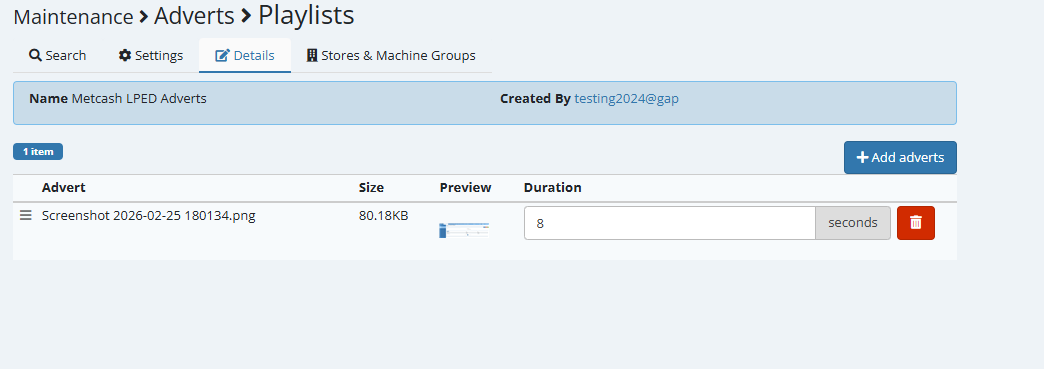
[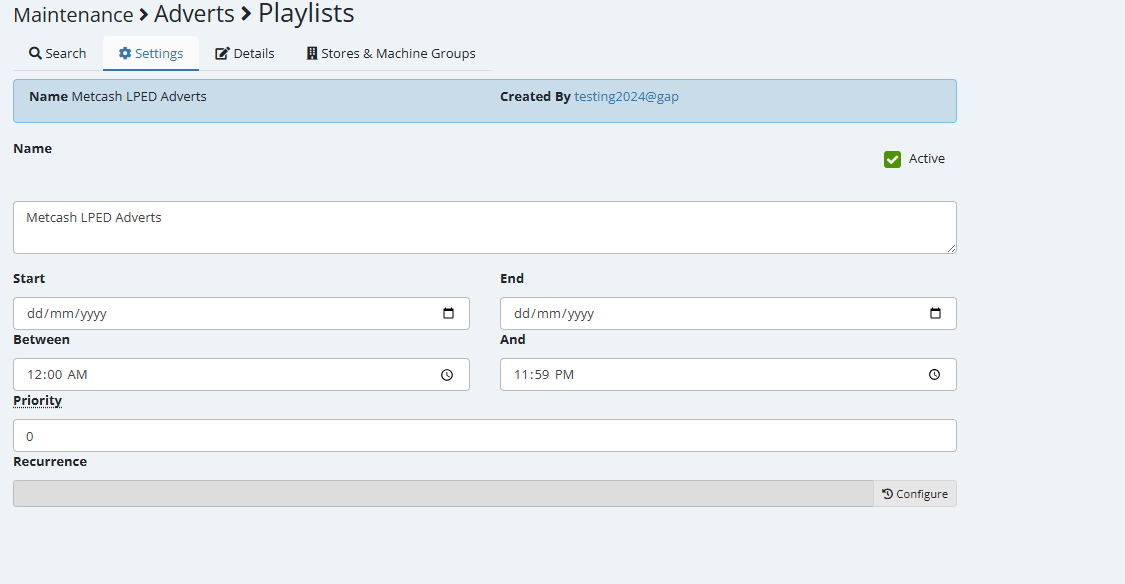](https://docs.gapsolutions.com.au/uploads/images/gallery/2026-02/QhcMDd10DuxN2si8-image.png) --- ## Step 2: Upload Advert Files 1. Open the **Details** tab. [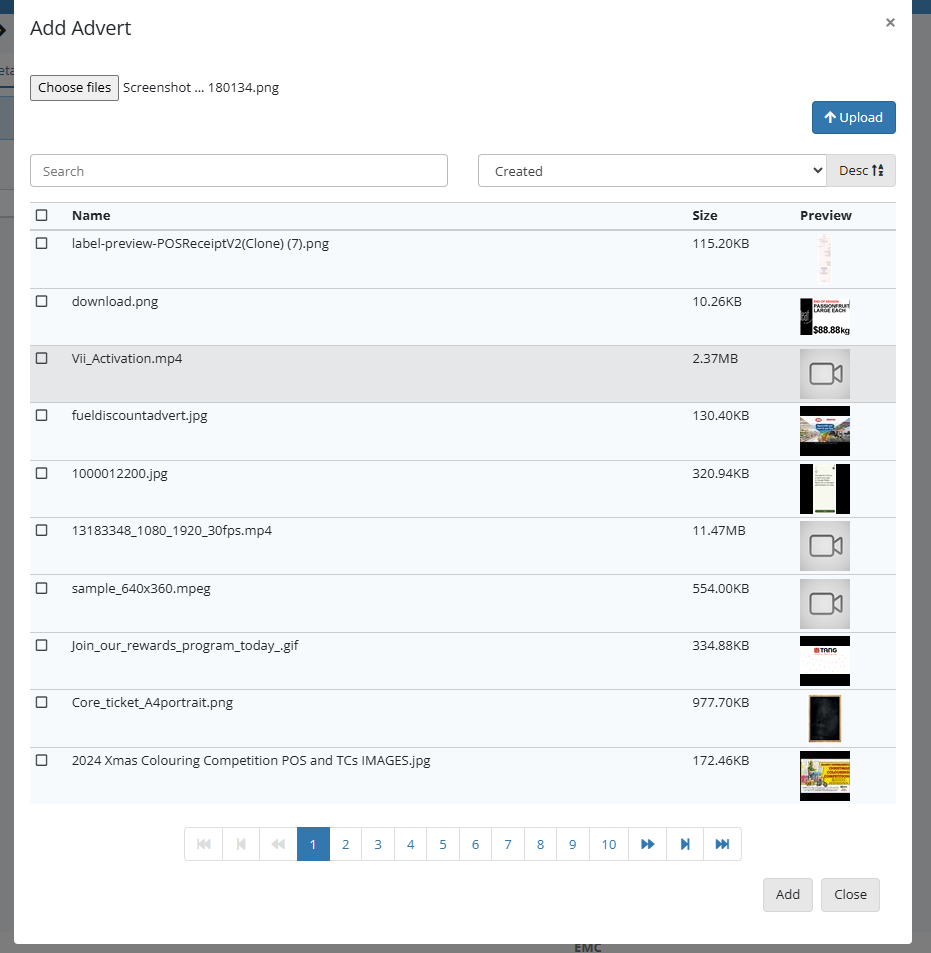](https://docs.gapsolutions.com.au/uploads/images/gallery/2026-02/TVAJoio23zKWPcSB-image.png) 2. Click the **Add Adverts** button. 3. Click **Choose Files**. 4. Browse to the advert files stored on your computer. 5. Select the file(s) you want to upload. 6. Click **Upload**. 7. Once uploaded, select the advert(s) from the list. 8. Click **Add** to include them in the playlist. After that you can re-order the adverts and set the image duration.Recomended Image file types are: **.bmp, .png, .jpg, (max. 2 megabytes)** Recomended Video file types are: **.gif, .mpeg, .avi (max. 20 megabytes)**
[](https://docs.gapsolutions.com.au/uploads/images/gallery/2026-02/eKIW8dRKpA6loRZa-image.png) --- ## Step 3: Assign Adverts to Stores or Machine Groups 1. Open the **Stores & Machine Groups** tab. 2. Select the appropriate: - **Zone** - **Store(s)** - **Machine Group(s)** 3. Click **Save**. [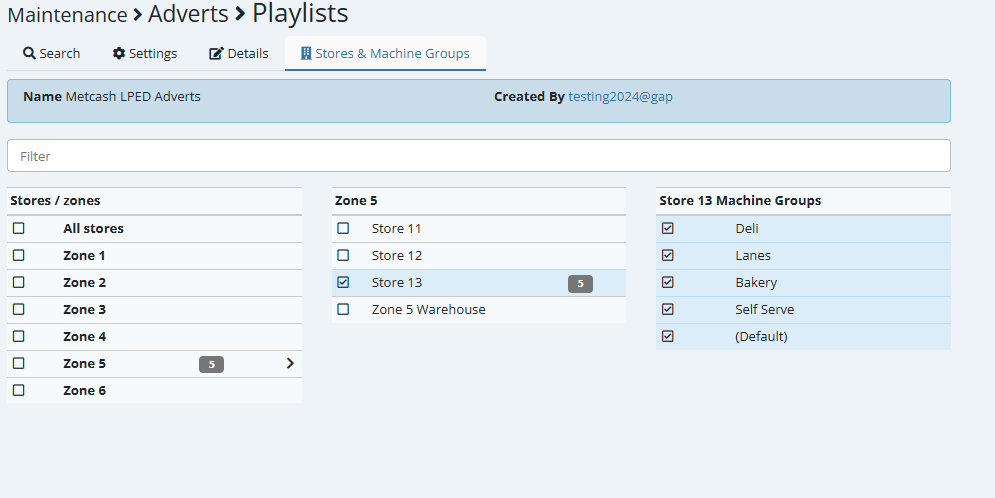](https://docs.gapsolutions.com.au/uploads/images/gallery/2026-02/cbwUagmIHsfaWeJH-image.png)It can take up to 10 minutes for adverts to start playing on the screen. If it has been longer than 20 minutes please check the time set in the playlist is configured. The default should be 12:00AM to 11:59PM.