Execution
⏱️ Time to Complete: 1–4 weeks (done progressively)
👤 Who this is for:
- Store Manager
- Inventory Controller
- Department Managers
- All counting staff
- Casual workers
👉 This is not a single task—it's ongoing preparation work.
Prepare for Stocktake
-
Why Preparation Matters
Preparation ensures your system is already close to correct before counting begins.
1. Create Sections (Store Mapping)
- Go to:
Stocktakes → Sections - Create sections that reflect physical areas
Good Example:
- “Back Room – Drinks”
- “Front Aisle 1 – Grocery”
Clear section naming allows easy recounts and investigations.
2. Check Stock On Hand
- Reports → Stock → Stock On Hand
- Run report
Look for:
- Departments with unrealistic totals
- Obvious errors
3. Check Out-of-Stocks
- Filter for stock = 0
Fix:
- Items that are actually in stock
- Remove or deactivate unused lines
4. Check Negative Stock
- Filter for stock < 0
Fix:
- Missing invoices
- Incorrect tracking settings
- Products stuck “on order”
Outcome of Preparation
You should now have:
- Clean data
- Clear store layout
- Confidence in starting stocktake
- Go to:
Create & Structure Stocktake
-
Create Stocktake
- Go to:
Stocktakes → Create - Enter:
- Name
- Correct date
⚠️ The date must match the actual stocktake date.
Structure Rules (Critical)
- Only ONE stocktake per store
- All inputs must exist inside it
Each input must:
- Represent one count
- Have a section
- Have a clear name
Naming Inputs Properly
Use:
Department + PersonExamples:
- Grocery – John
- Dairy – Sarah
This makes investigations fast and accurate.
Common Mistakes to Avoid
- Creating multiple stocktakes
- Using vague input names
- Mixing sections incorrectly
- Go to:
Count Stock (PDE Guide)
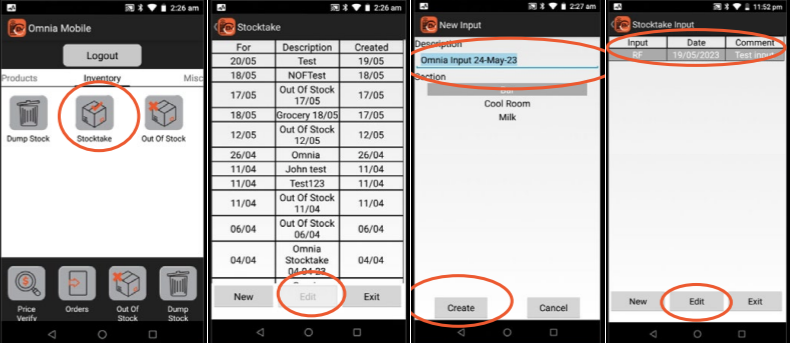
Create an Input
- Login → Inventory → Stocktake
- Select stocktake → Edit
- Create input:
- Name
- Section
Counting Process
- Scan product
- Enter quantity
- Press Add
Optional:
- Scan location before product
Important Rules
- Always press Add on final item
- Do not double count areas
- Ensure correct section is selected
Reviewing Counts
- Press back
- Review scanned items
- Edit if needed
Common Issues
-
- Missing last item (forgot to press Add)
- Incorrect quantities entered
- Wrong section used