
Security Options
Security Options controll which users can log in using specific devices and IP addresses. You can enforce browser verification so users must have a browser / device approved by management. You can also limit EMC access to specific IP Addresses to controll the location of EMC access.
These security settings can be controlled at 3 different levels
- Group (Everyone)
- Store
- User
The Security Options can also be stacked based on Priority. e.g. You can set IP Whitelist for each store, and then setup additional IP Whitelist, or remove the IP Whitelist restriction by specific user.
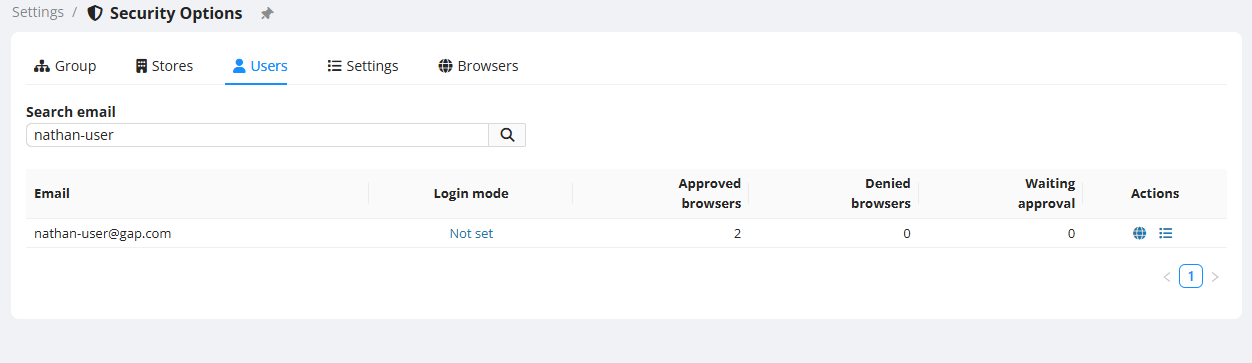
To Configure a Users Security Options go to the Settings > Security Options section then click on the Users tab.
Search for the User and it will show you some details such as the Login Mode, Approved Browsers, Denied Browsers and browsers Wairing Approval. If you click on the Login Mode it will open the user's settings section.
Browser Verification
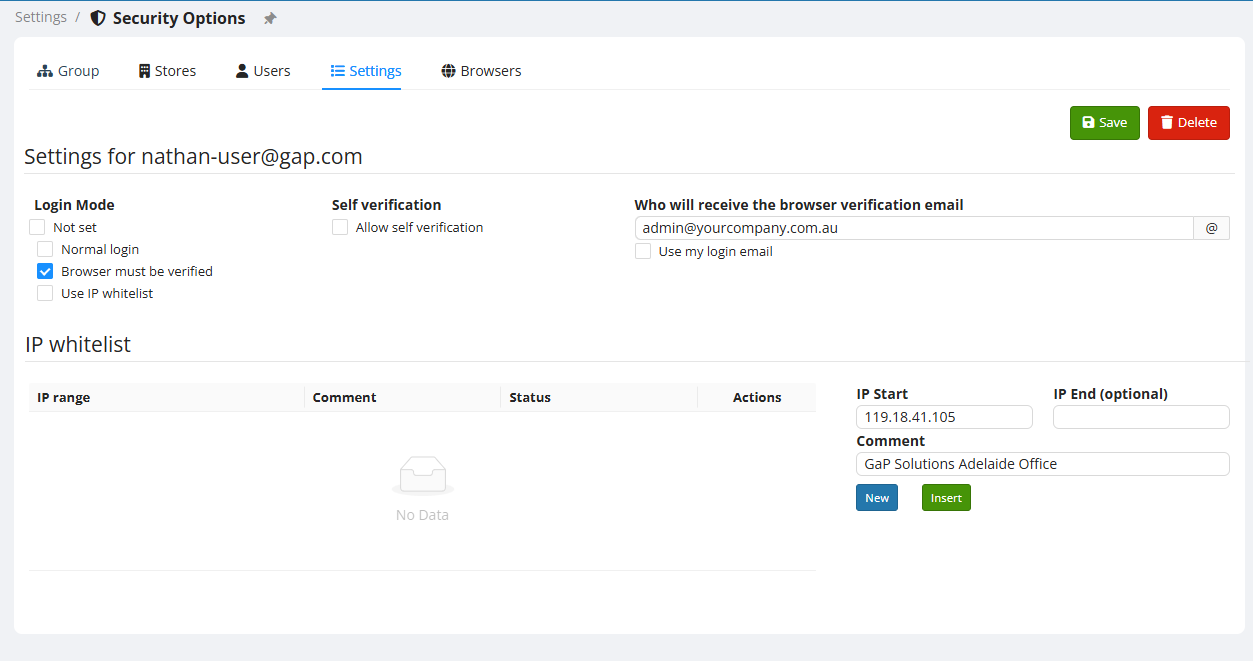
If you want to enable Browser Verification, select the option "Browser must be verified". This will enable a few additional settings that can be configured. When Browser Verification is enabled, when the user tries to log into EMC for the first time on a new PC an email will be sent to a designated email address requesting approval. Once Approved, the PC/browser combination is stored in EMC and can be used in the future.
You can give the user the ability to verify their own browsers with Self verification. This is useful if the user has access to their own email account.
IP Whitelist
To set an IP Whitelist enter the IP address in the IP Start field. Give it a short description in the Comment field. Then click Insert.
There are many sites that can provide your public IP Address. Here is a common one https://whatismyipaddress.com/
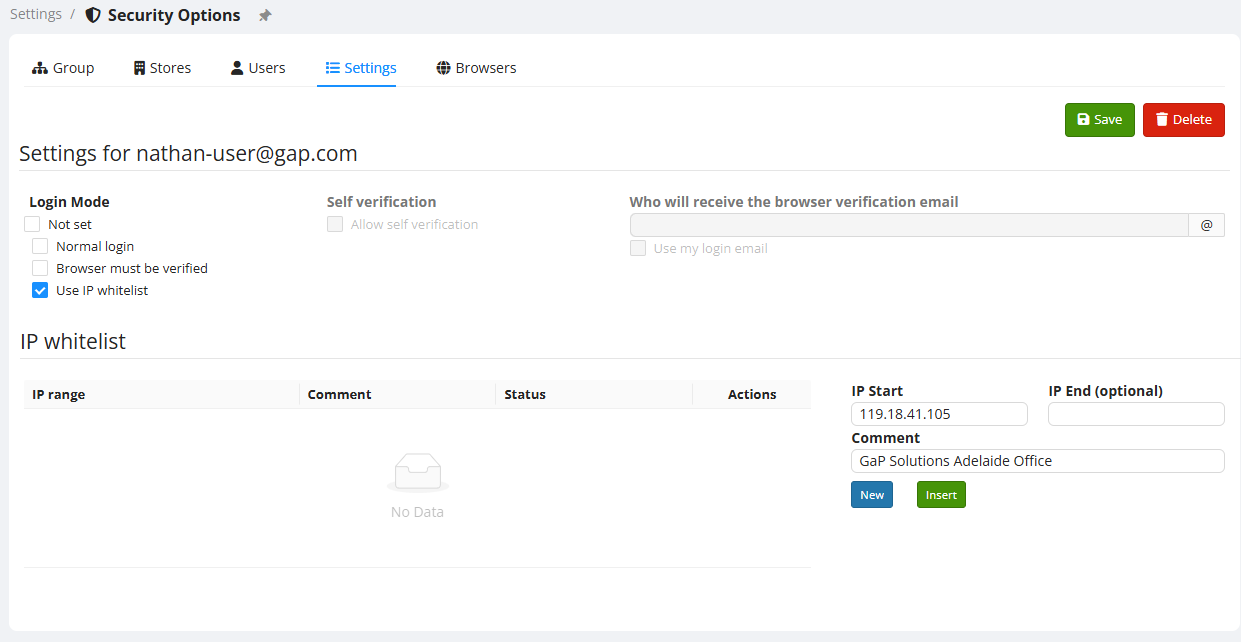
These settings are the same for Users, Stores and Group.