
Security Options
Overview
The Security Options in EMC allow administrators to control who can access the system and from where. These settings let you restrict login access based on approved devices (browsers) and specific IP addresses, improving system security and preventing unauthorized access.
Security Options controll which users can log in using specific devices and IP addresses. You can enforce browser verification so users must have a browser / device approved by management. You can also limit EMC access to specific IP Addresses to controll the location of EMC access.
These security settings can be controlledapplied at 3three different levelslevels:
- Group (Everyone)
- Store
- User
The Security OptionsSettings can also be stacked based on Priority.priority. e.g.For Youexample, canyou setmay configure an IP Whitelistwhitelist forat eachthe store,store level, and then setup additional IP Whitelist,override or removerefine thethat IPwhitelist Whitelistfor restrictionindividual byusers specificas user.required.
Accessing Security Options
To Configureconfigure security settings for a Usersuser:
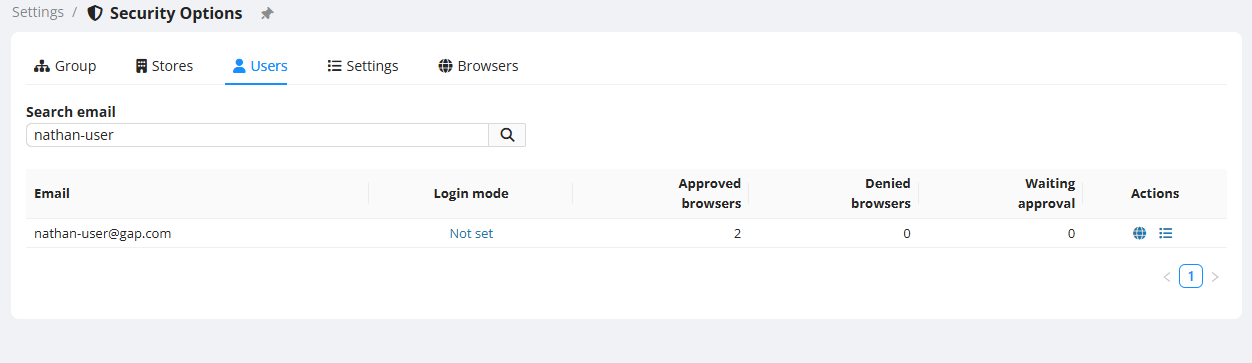
Browser Verification
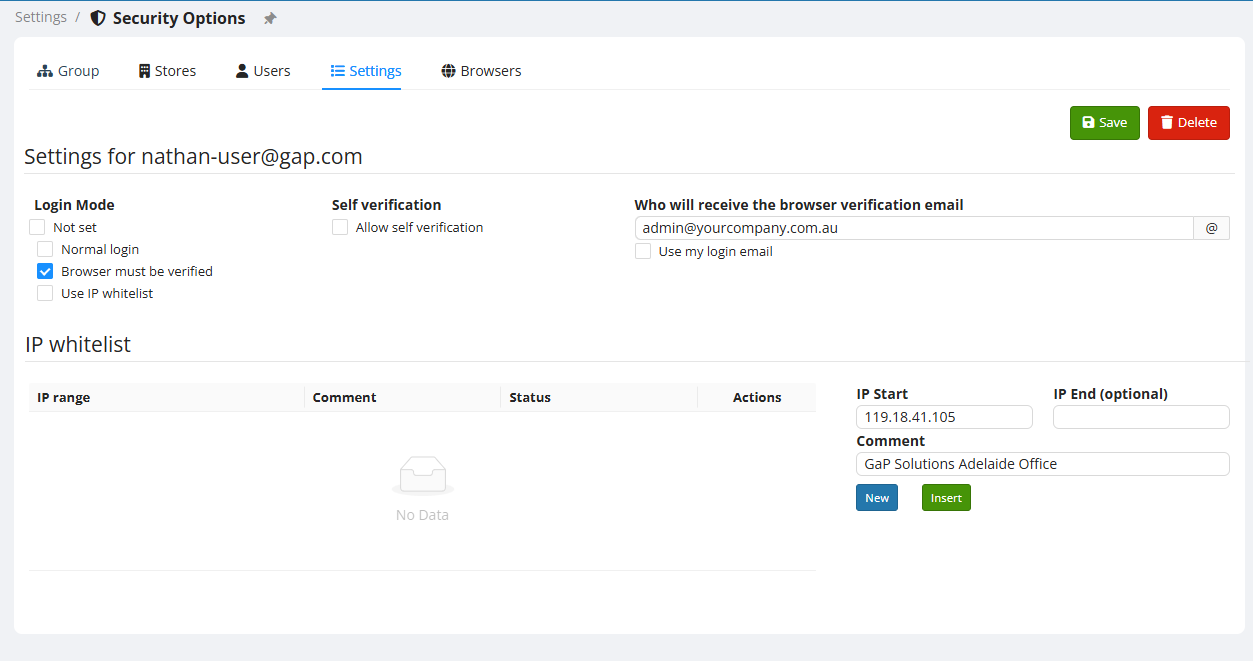
If you want to enable Browser Verification, select the option "Browser must be verified". This will enable a few additional settings that can be configured. When Browser Verification isensures enabled,users whencan theonly log in from approved browsers/devices.
How It Works
- When a user
triesattempts to logintoinEMC for the first time onfrom a newPCbrowser or device:- EMC sends an email
will be sentto a designatedemailapproveraddressaskingrequestingfor approval. - Once
Approved,approved,thethatPC/browser combinationbrowser/device isstored in EMCsaved and can be usedinforthefuturefuture.logins.
You - EMC sends an email
- Users can
giveoptionallythebeuser the abilityallowed to self-verify their ownbrowsersbrowserwith(ifSelftheyverification.have email access). Thisisreducesusefuladminifoverhead.
Enabling Browser Verification
- In the
useruser’shassecurityaccesssettings, enable Browser must be verified
Additional browser settings will appear. - Save changes.
Common use cases:
- Limit logins to
theircompany-ownedowndevicesemailonly. - Require admin verification for any new login device.
IP Whitelist
Whitelisting
To set an IP WhitelistWhitelisting enterrestricts theaccess IPto addressEMC inbased theon IP Start field. Give it a short description in the Comment field. Then click Insert.
There are many sites that can provide yourspecific public IP Address. Here is a common one https://whatismyipaddress.com/addresses.
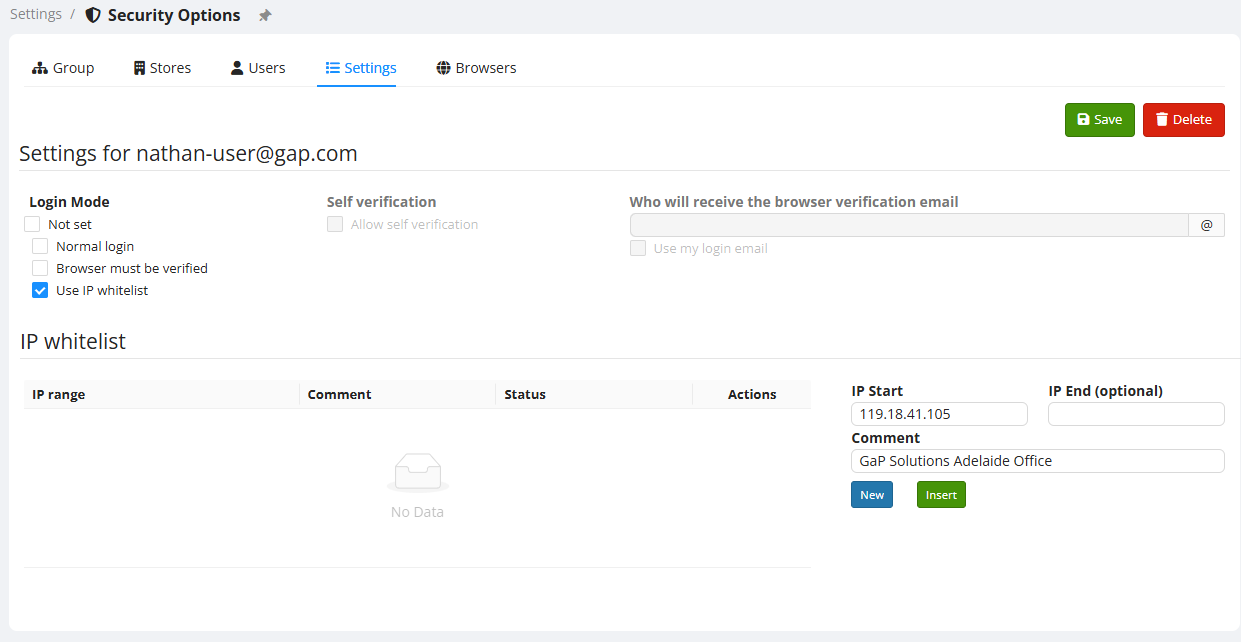
How to Set Up an IP Whitelist
- In the IP Whitelist section for a user, store, or group:
- Enter the IP Start address.
- Add a descriptive Comment.
- Click Insert to save the IP entry.
TheseTip: Use a service such as whatismyipaddress.com to discover the public IP address you wish to whitelist.
Notes
- IP Whitelist entries apply at the selected security level (User, Store, or Group).
- You can add multiple IPs if users connect from different locations.
- Entries can be modified or deleted at any time.
Security Option Priority and Layering
Security settings are evaluated in the samefollowing order:
- User-specific settings
- Store-level settings
- Group (Everyone) settings
A stricter user security rule (e.g., an IP whitelist for Users,one Storesuser) andwill Group.override broader store-level restrictions if configured.
Example scenarios:
- A store may allow access from a corporate office IP range.
- A specific user might be restricted further to only one IP (e.g., their home office).
- Browser verification may be enabled for all users but disabled for specific trusted users.
Summary of Key Security Controls
| Security Feature | Purpose |
| Browser Verification | Ensure only approved decives can log in |
| IP Whitelisting | Restricts access to specific IP addresses. |
| Layered Settings | Allows flexible security at group, store or user levels. |
Best Practices
✔ Use IP Whitelisting for high-security environments.
✔ Enable Browser Verification for users accessing on mobile devices with no fixed public IP Address.
✔ Review security settings periodically to ensure they match your current access needs.