
Visa Giftcard Loading Fees
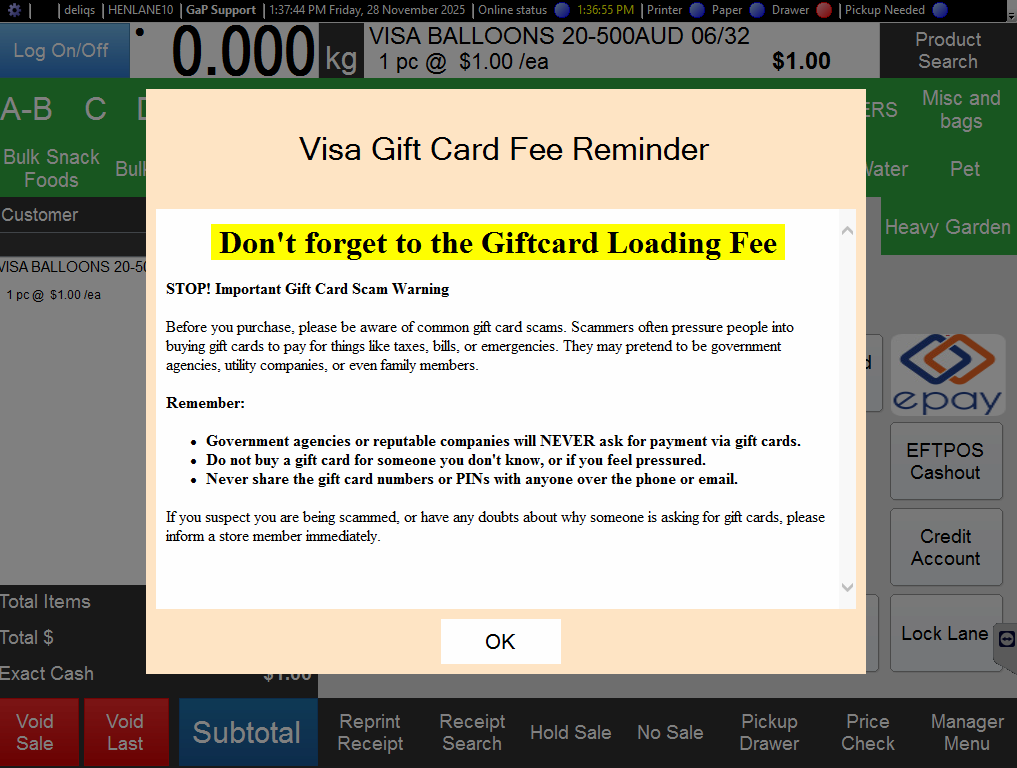
Visa prepaid giftcards often have a additional loading fee. POS can't automatically add the loading fee for variable price giftcars (yet) so it's upto the checkout operator to add this fee as a separate product to the transaction. The steps below will show you how to create the product and also how to configure a reminder for the checkout staff.
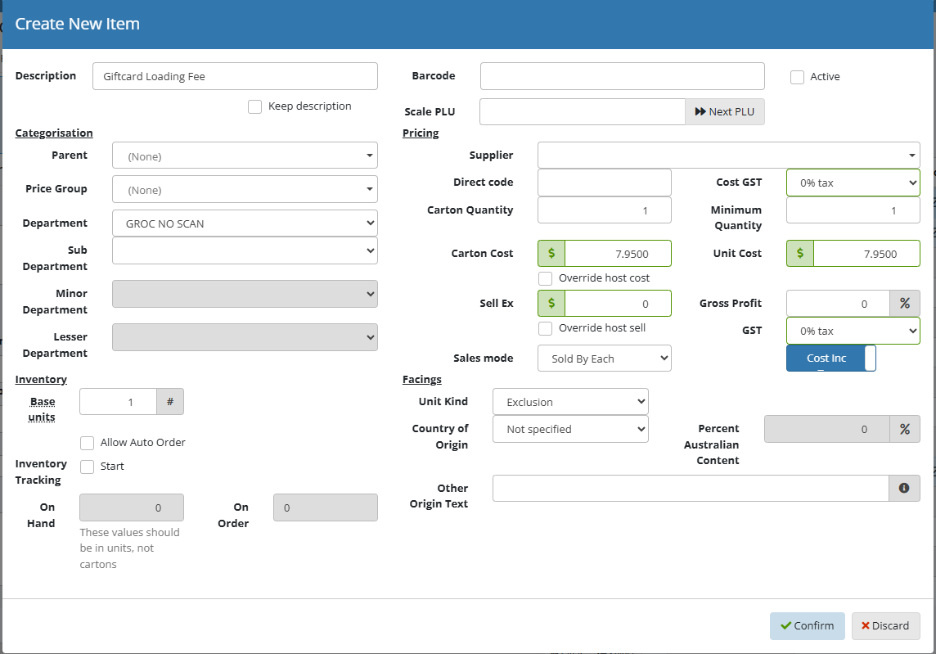
Create the Fee Product
- Open Product Maintenance
- Click on the Create button
- Fill in the Description, Department/ Sub Department, Active Status, GST and Sell Price.
There are a few ways to sell the product.
Flipchart: Add the product to a flipchart for the checkout staff
Barcode: Add a unique barcode to the product so the checkout staff can either scan or type it in (like a produce item)
Product Search: This is the least efficient way, but still possible for checkout staff.
Setup Popup Message Reminder
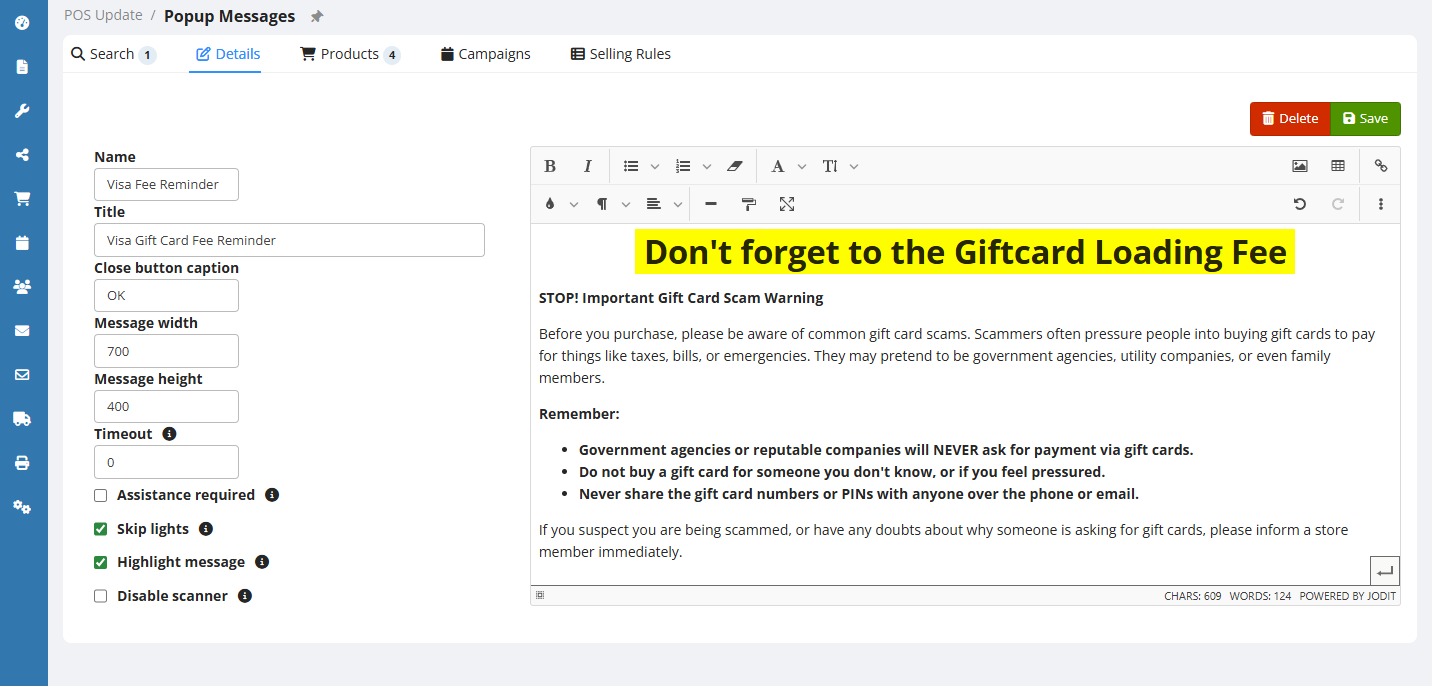
- Open POS Update > Popup Messages
- Click the Add button to add a new message
- Fill in the Details, an example is below and click Save
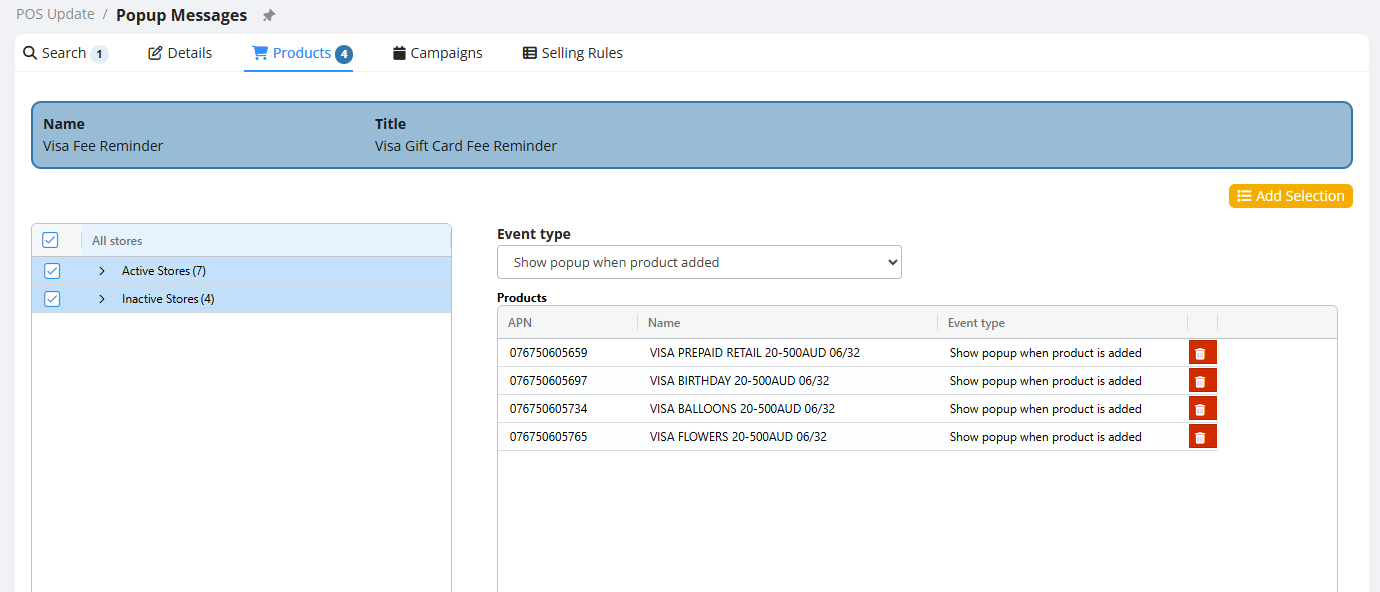
- Go to the Products Page
- Change the Event Type to "Show popup when product added"
- Click the Add Selection
- Search for Visa and add all Visa variable products
Here is an example of the text you can use:
Don't forget to the Giftcard Loading Fee
STOP! Important Gift Card Scam Warning
Before you purchase, please be aware of common gift card scams. Scammers often pressure people into buying gift cards to pay for things like taxes, bills, or emergencies. They may pretend to be government agencies, utility companies, or even family members.
Remember:
- Government agencies or reputable companies will NEVER ask for payment via gift cards.
- Do not buy a gift card for someone you don't know, or if you feel pressured.
- Never share the gift card numbers or PINs with anyone over the phone or email.
If you suspect you are being scammed, or have any doubts about why someone is asking for gift cards, please inform a store member immediately.
No Comments